The new Test Automation Tool in SAP S/4HANA Cloud
SAP S/4HANA Cloud is a suite of integrated business applications which provides a test automation tool thereby assisting customers to automate testing in the different phases of their project.
There are various steps in this process and the testing of automation tool, the entire process happens in the realize phase and it is available in the customer quality system.
Once you are provisioned with the “Q” system you can access the automation tool.
Inside the test automation tool:
app | Access |
Test your process | SAP_BR_BPC_EXPERT |
Manage your test process | |
Analyze automated test result. |
Initially, test your process and manage your test process can be accessed by both SAP_BR_BPC_EXPERT and SAP_BR_ADMIN_TEST_AUTOMATION apps but the Analyze automated test result is accessible only through SAP_BR_ADMIN_TEST_AUTOMATION.
Browser:
The browser recommended for the automation process is google Chrome.
Role:
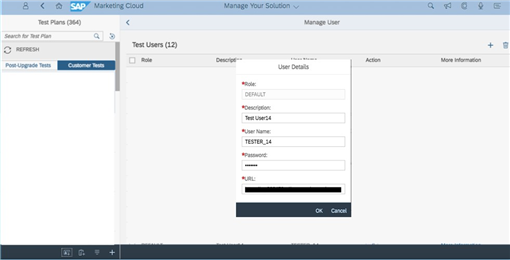
In the role field, set the first entry as “DEFAULT”. To execute the standard automation this entry of role is mandatory.
Description:
Here you have to define the purpose of the role
Ex: test user or test administrator.
User Name:
According to an active SAP user, you need to mention the active business username of SAP S/4HANA Cloud to log into the tool and make sure that the test user exists in the identity provider. The recommendation is to create a test user specifically for the testing purpose with all the application specific role because if this user does not have roles then the test plans would fail due to no authorization to access the apps. Whereas test automation tool also supports SAP Cloud Identity and Microsoft ADFS. Raise an incident under component CA-CTT-S4C, if you are using any other IDP for authentication purpose.
Password:
To log in, the test user should have the same password as of the test user of SAP S/4HANA Cloud. If you change the password for SAP S/4HANA Cloud, same applies to the other, each time the password changes, it needs to be updated here.
URL:
Here you need to enter the URL of the SAP S/4HANA Cloud of your system.
First step:
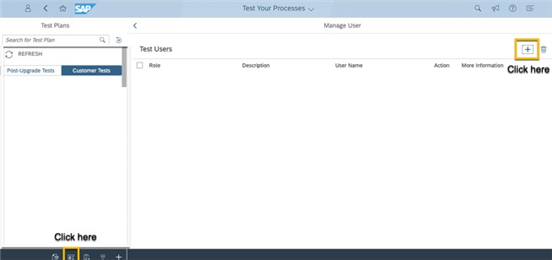
1. Set up test tool through the “test your process” app
2. Add a test user in the manage section
3. Open test your process and click the manage user icon
4. In the landing page click on the add button to add the test user.
Now a pop-up window will open, displaying
- The fields
- Role
- Description
- User Name
- Password and URL
For more information visit the https://blogs.sap.com/2019/05/27/how-do-i-set-up-the-test-automation-tool-in-sap-s4hana-cloud/ and refer this guide https://support.sap.com/content/dam/SAAP/SAP_Activate/S4H_302%20TestAutTool_CustAdminGuide.pdf
Stay Connected to Indian America
Get the latest community stories, local events, entertainment and lifestyle updates delivered to your inbox.


